

Clients and reports
Site reports and audits
Make a PDF report for one site on demand or on a schedule, and run a site audit of its plugins, hosting and custom code for a client or your team.
Applies to: All plans
Besides client reports, you can make a PDF report for a single site, and run an audit of how a site is built.
Site reports
On the site's Overview, click Generate Report, or open its Reports tab.
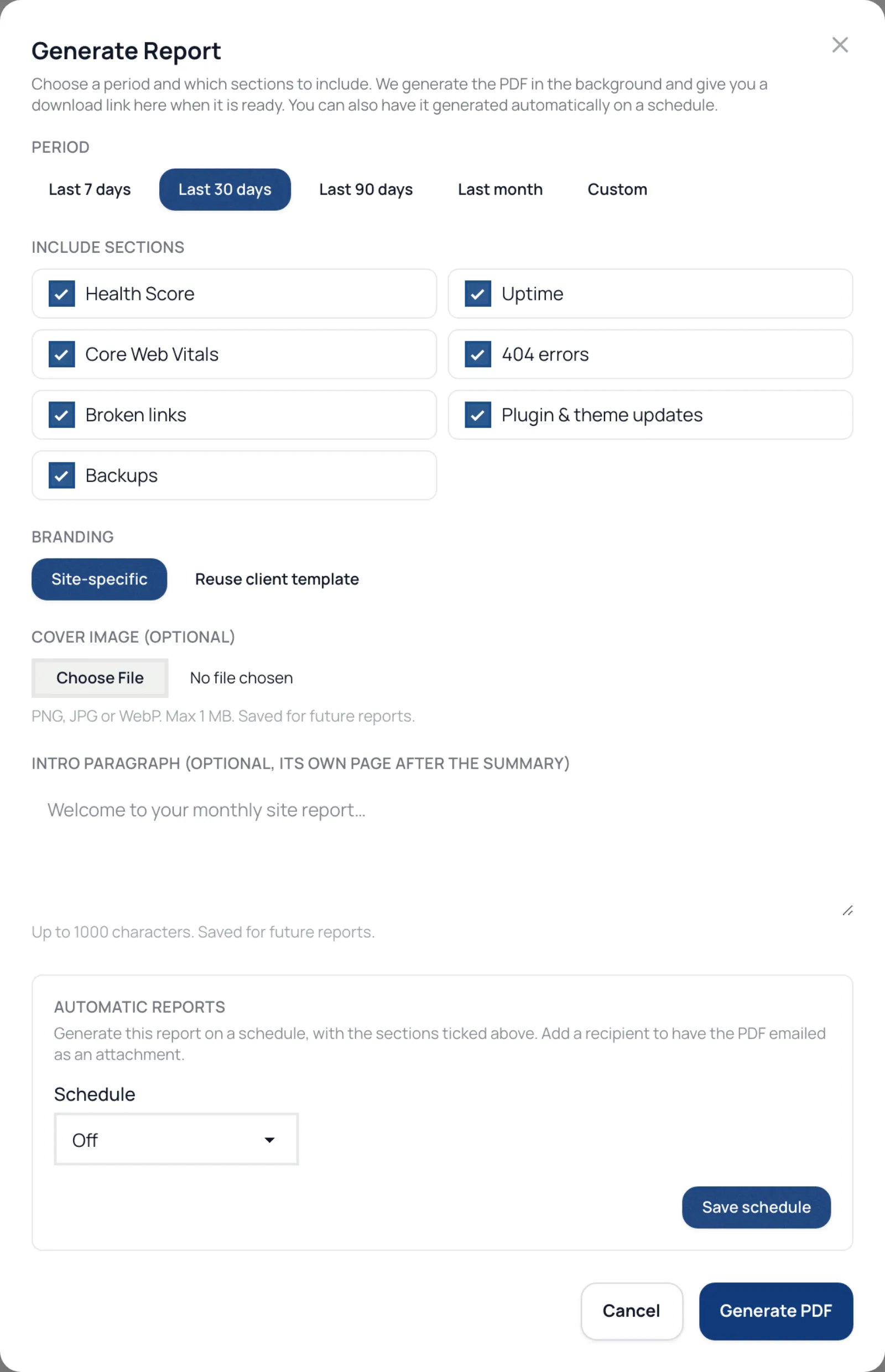
- Choose the period: Last 7 days, Last 30 days, Last 90 days, Last month or Custom.
- Tick the sections to include: health score, uptime, Core Web Vitals, 404 errors, broken links, plugin and theme updates, and backups.
- Choose the branding: Site-specific, with an optional cover image and intro paragraph, or Reuse client template for the client's logo and intro.
- Click Generate PDF. The PDF is built in the background and appears on the Reports tab.
Under Automatic reports, choose Weekly or Monthly, the day (Send on day, 1 to 28) and the Period covered, and add a Recipient email to have each PDF emailed. Automatic site reports are part of the paid plans; on the free plan they are not sent.
Site audits
An audit is a PDF about how a site is built, for a handover, a quote or a review.
- Open the site's Audits tab and click Generate audit.
- Choose the audience: Client-facing or Internal / technical.
- Tick Include AI-generated executive summary for a written summary at the top.
- Start it. It takes 30 to 90 seconds.
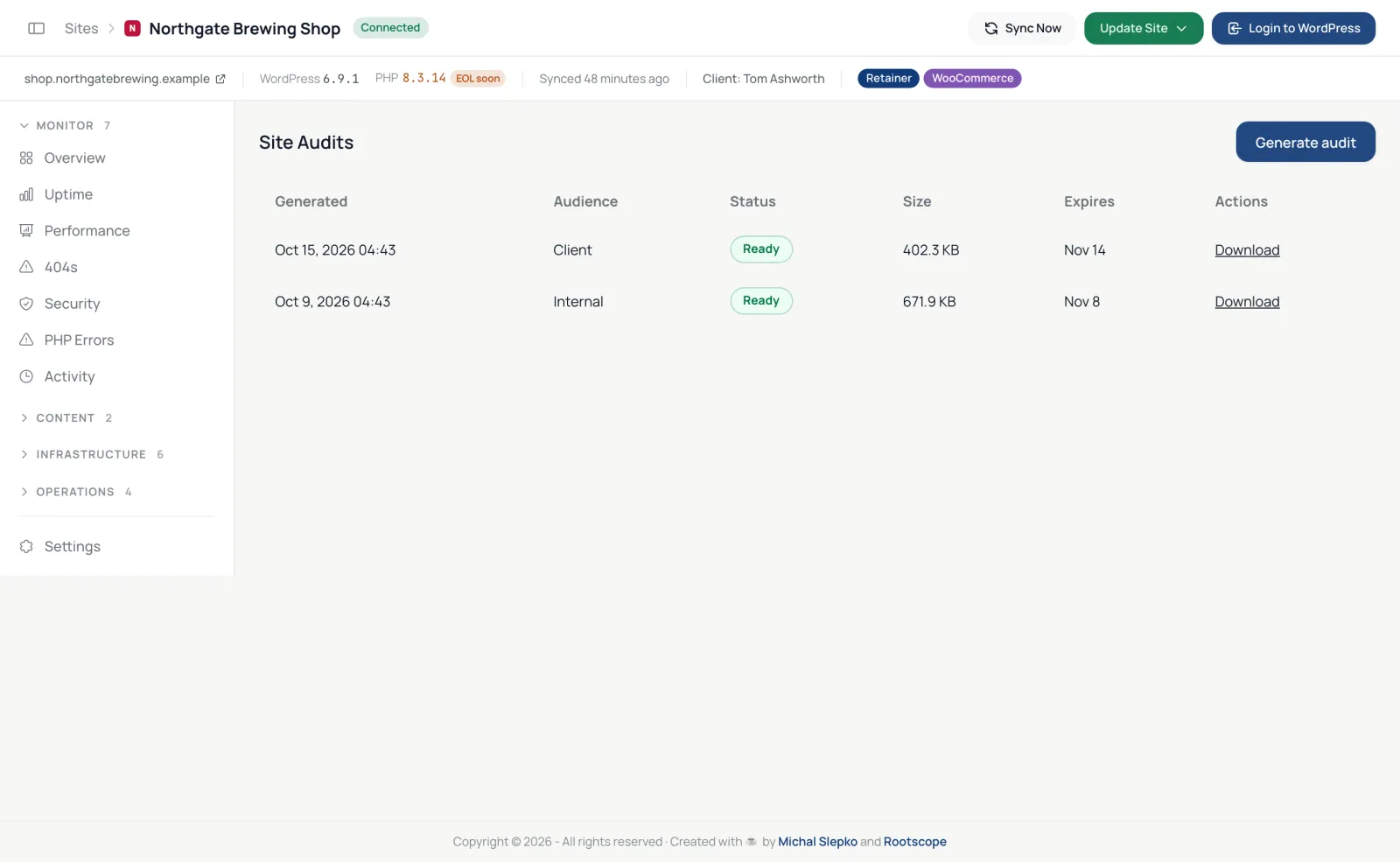
The audit covers the server and WordPress setup (WordPress, PHP and MySQL versions, memory and upload limits, debug settings, cron), every plugin with whether it needs an update, looks abandoned on WordPress.org or has a known vulnerability, page and object caching, and recommendations. The internal version adds multisite, must-use plugins and custom code found in the theme and plugins, with secrets removed. Download links last 30 days.
One audit runs per site at a time. How many audits each site gets in 30 days depends on your plan; see What each plan includes.