

Clients and reports
Client reports
Group sites under a client, add their logo and an intro, and send a PDF maintenance report every week or month, or generate one when you need it.
Applies to: Paid plans
A client report is a PDF on a client's sites: a summary letter, the month's numbers, recommendations and a page per site. Client reports are part of the paid plans; on the free plan you can still set up clients and their report cover, but Generate Report says "Report generation requires a paid plan." and no scheduled report is sent.
Group sites under a client
- Open Clients in the sidebar and click Add Client.
- Enter a name, a company, or both, and an email address if you want to send them reports.
- On each of their sites, go to Settings and pick them under Client.
Add a logo and an intro
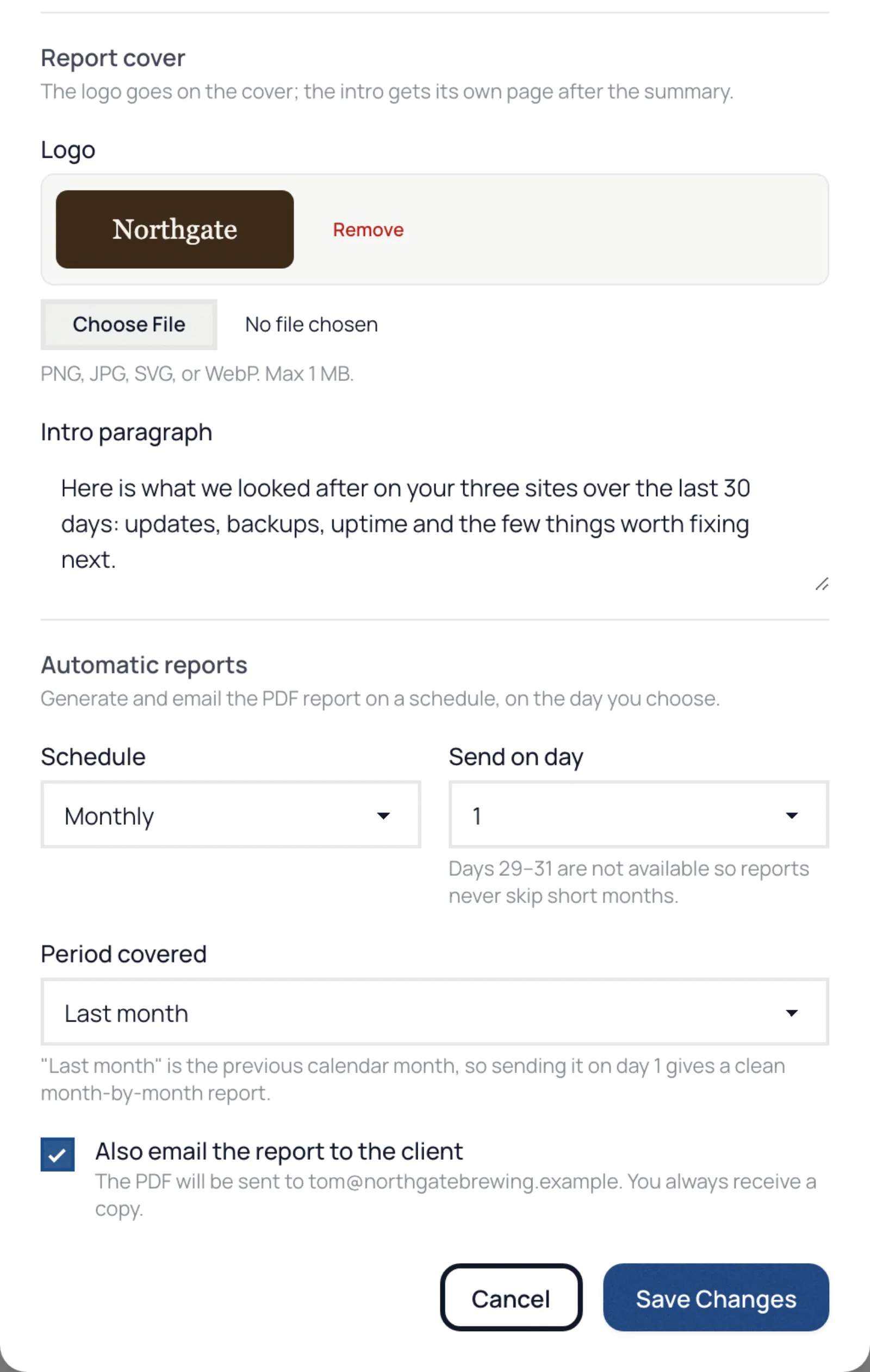
On the client's page, click Edit. Under Report cover:
- Logo: PNG, JPG or WebP, up to 1 MB. It goes on the cover.
- Intro paragraph: up to 1,000 characters, on its own page after the summary.
The cover reads "Prepared with WP Admin Online", and each page's footer says the report was generated by WP Admin Online. There is no option to remove them yet.
Send reports automatically
Under Automatic reports:
- Set Schedule to Weekly or Monthly.
- Choose the day: a weekday under Send on, or a day from 1 to 28 under Send on day (29 to 31 are left out so short months never skip).
- Choose the Period covered.
- Tick Also email the report to the client to send it to them as well. You always receive a copy, and a client's reply comes to you.
- Click Save Changes.
Reports go out at 07:30 UTC on the chosen day.
Make a report now
On the client's page, open Generate Report and choose Last 7 days, Last 30 days, Last 90 days or Last month. The report appears in the list when it is ready; click PDF to download it. A report made this way is not emailed. The last 24 reports stay on the page.
From the Clients list, each client's Report menu does the same.
What is in a report
A summary letter, the headline numbers, the sites overview, prioritised recommendations, and a page per site with uptime, Core Web Vitals, updates applied, backups, the top 404s and broken links. Performance, 404 and broken-link sections with no data are left out; updates and backups always appear, saying so when there were none. See a sample report.
Product overview: Client reports