

Notifications
Set up alerts
Choose which problems you hear about, by email or Slack, grouped per site or in a digest, and send each client's alerts to their own Slack channel.
Applies to: All plans
The Alerts Centre decides what you hear about, how it is grouped and where it goes. Open it from Alerts in the sidebar.
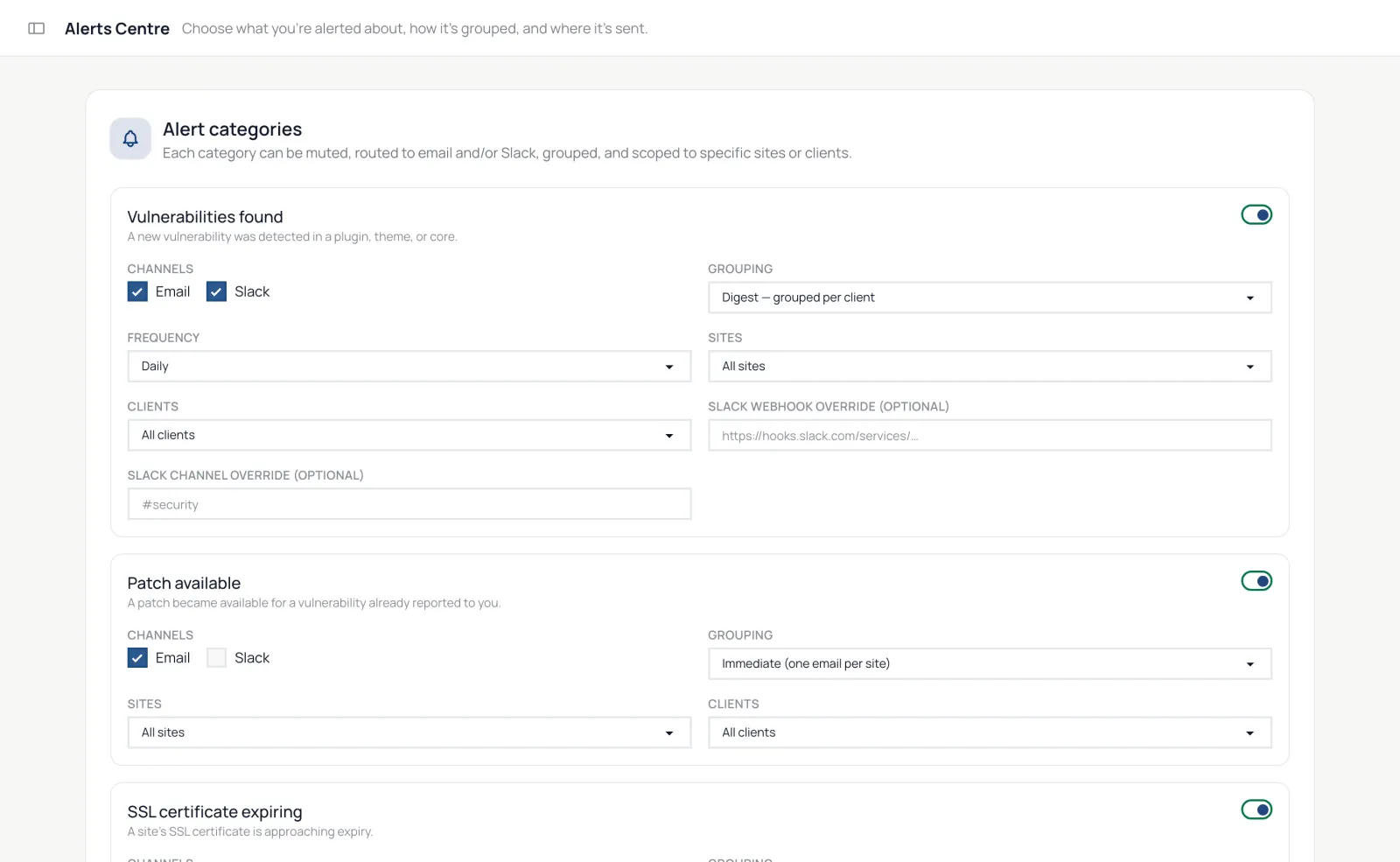
Choose what you hear about
Each category can be switched off, sent by email, Slack or both, grouped, and limited to some sites or clients:
| Category | What triggers it |
|---|---|
| Vulnerabilities found | A plugin, theme or WordPress core version with a known vulnerability |
| Patch available | A fix for a known vulnerability |
| PHP security advisory | A site runs a PHP build covered by a critical PHP security release — one email per account, or per client, listing every affected site |
| SSL certificate expiring | 30, 14, 7 and 2 days before expiry |
| Domain expiring | Every Monday from 30 days before expiry |
| Security incidents | Security events on a site: a new administrator, a burst of failed logins, a login from a new country, or a change to wp-config.php or .htaccess |
| Fatal PHP errors | A new fatal PHP error is logged on a site |
| Core Web Vitals poor | The homepage's mobile LCP, INP or CLS stays in Google's poor range for two checks in a row |
| Uptime (down and recovered) | A site goes down or comes back (paid plans) |
Until you change anything, every category is on, by email, one email per event.
Group alerts
Under Grouping, choose Immediate (one email per site), Digest — all sites in one email or Digest — grouped per client, and a Daily or Weekly frequency for digests. Uptime alerts are always immediate.
Send alerts to Slack
- In Slack, create an incoming webhook for the channel you want.
- Paste it under Slack webhooks as the Account webhook, and click Test.
- To send a client's alerts somewhere else, paste a webhook in that client's row.
- Tick Slack under Channels for each category you want there.
- Click Save preferences.
A category's own webhook override wins over the client's, and the client's over the account's.
The fleet digest
Below the categories, Fleet Digest Email sends a summary of backups, updates and uptime: daily, weekly, or off.
Alerts that always come by email
A few problems are emailed to you directly and can't be routed elsewhere: a failed backup, a failed update batch, a failed snapshot or rollback, and failed syncs.
Per-site uptime targets
On paid plans, a site's Uptime tab can send its uptime alerts to its own email address, Slack webhook or any webhook URL, under Alert Configuration. A new email address must be verified first.