

Everyday work
Running updates
Update plugins, themes and WordPress core on one site or across your whole fleet, choose how carefully each update runs, and follow its progress.
Applies to: All plans
You can run updates from two places: the Updates page, for the whole fleet, or a site's own page, for one site. Either way, you pick the updates first, then choose how carefully they run.
Update many sites from the Updates page
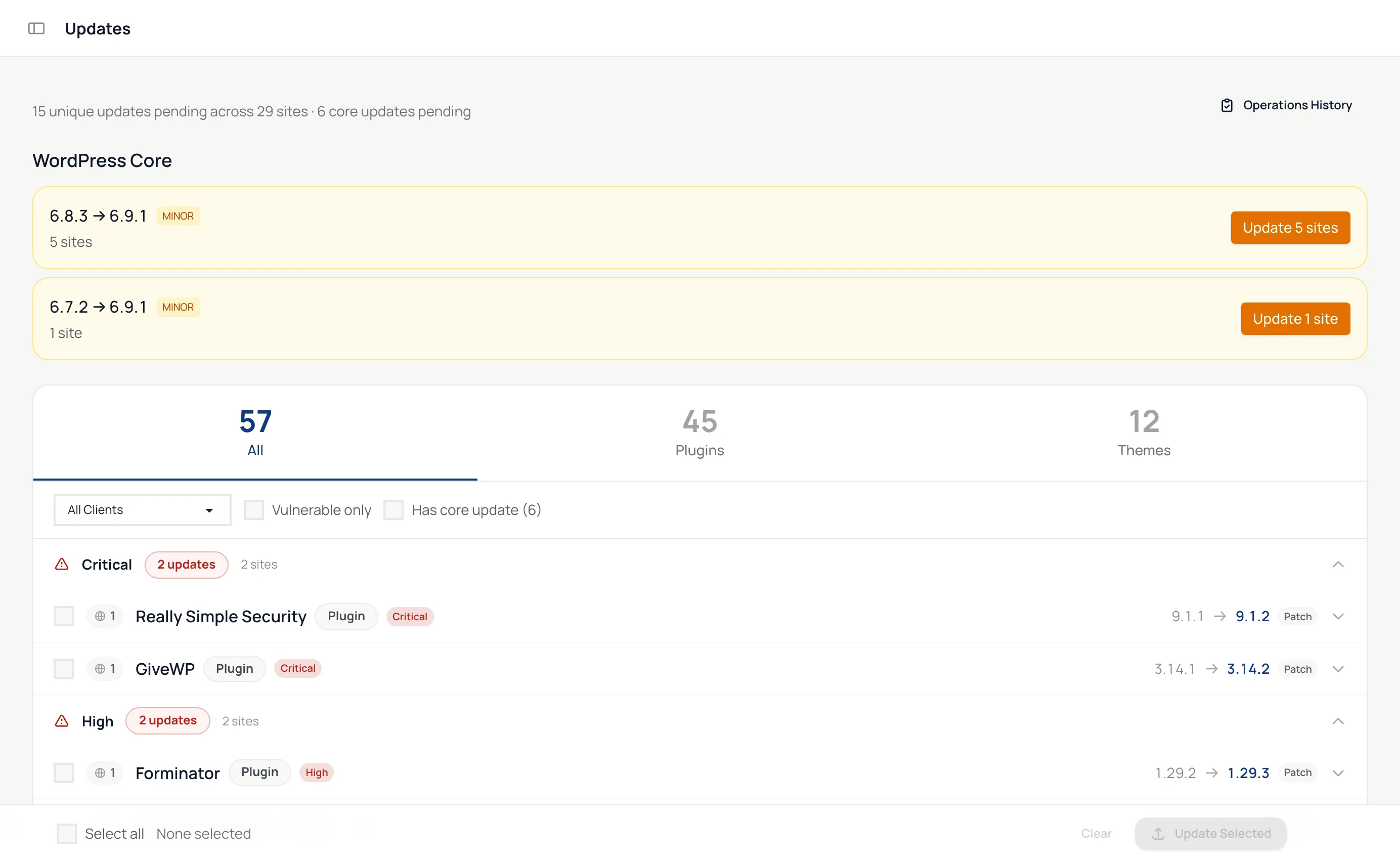
- Open Updates in the sidebar. The line at the top shows how many updates are pending and on how many sites.
- WordPress Core updates come first, grouped by version jump, each with an Update button for the sites that need it.
- Plugin and theme updates follow, grouped by severity so security fixes come first. Switch between All, Plugins and Themes, and narrow the list with All Clients, Vulnerable only and Has core update.
- Open a row to see every site that has the update, with the version each one runs now.
- Tick the updates you want. The bar at the bottom counts your selection. Click Update Selected.
Update one site
Open the site and click Update Site at the top right. It lists that site's pending plugin, theme and core updates.
Choose how the update runs
After you pick updates, the dashboard asks How do you want to update?
| Mode | What it does | Rolls back on its own |
|---|---|---|
| Quick Update | Runs the update with no snapshot and no checks. | No |
| Quick + VRT | Takes screenshots before and after so you can see what changed. No snapshot. | No |
| Safe Update | Takes a snapshot, runs the update, checks the site, compares screenshots and rolls back if something broke. | Yes |
Quick Update and Quick + VRT are on every plan. Safe Update is on the paid plans; on the free plan its card links to the plans instead.
WordPress core updates always run as Safe Update, so running them from the dashboard is part of the paid plans too. For a major WordPress version you also confirm that you understand rolling back across major versions is riskier. On the free plan, the Updates page still lists which sites need a core update, and you can run it from each site's wp-admin.
The same screen shows each update's changelog (release notes for WordPress core) and a risk level. On paid plans, for plugin and WordPress core updates, the risk level comes from an AI risk note: hover over it to read why. With Safe Update you can tick Auto-rollback if visual regression test fails. Safe updates and rollback explains what happens when you do and when you don't.
Click Continue to start.
Follow progress
Plugin and theme updates run on up to eight sites at a time. Open Activity in the sidebar, or Operations History on the Updates page, to see each update, its steps and its result. While a site is updating, its page shows a progress banner.
When an update fails
The update's activity page says why it failed, for example the web server couldn't write the plugin files, the disk was full, the download failed, or the version didn't change. If a Safe Update leaves the site returning a server error, or PHP errors spike, the previous version is put back automatically.
Product overview: Safe bulk updates