

Clients and reports
Clients
Add clients, give each one their sites, see their health and reports on one page, and send each client's alerts to their own Slack channel.
Applies to: All plans
A client groups the sites you look after for one customer, so you can filter by them, send their alerts to their own Slack channel and send them reports. Clients never get a login.
Add a client
- Open Clients in the sidebar and click Add Client.
- Enter a First Name and Last Name, a Company, or both, an Email if you want to send them reports, and any Notes.
- Click Create Client.
Give them their sites
- On a site's Settings, pick the client under Client.
- On the Sites list, select several sites, click Assign Client and choose the client, or None (remove client).
- When you set up a new site, the setup wizard asks for its client.
The client's page
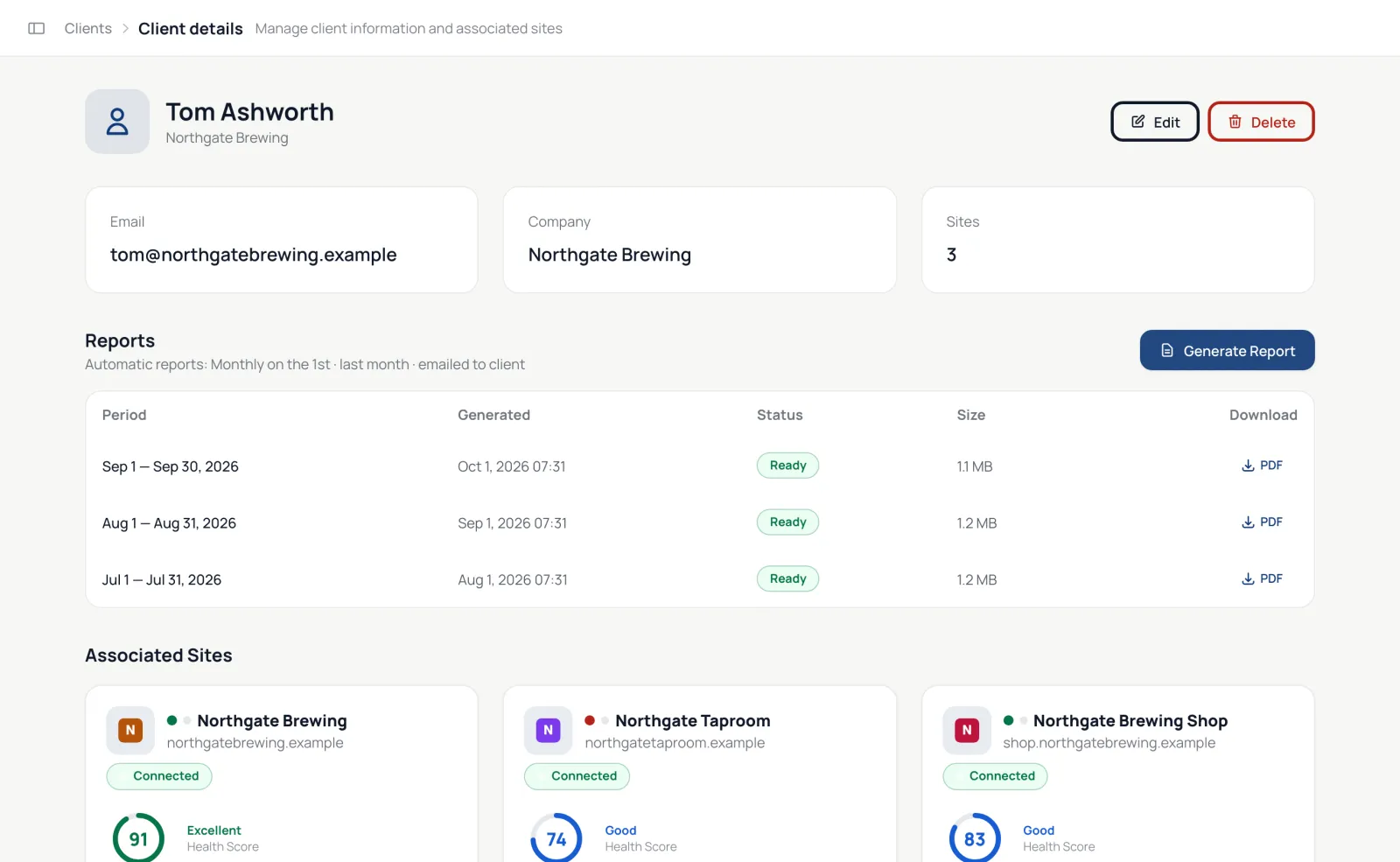
The page shows their email, company, sites and notes, their reports (period, date, status, size and a download link) with Generate Report, and their Associated Sites. The Clients list shows each client's health, number of sites and last activity, and the client filter on the sites list, the updates page and Today's work narrows each to one client.
Their alerts
In the Alerts Centre, each client can have its own Slack webhook and channel under Slack webhooks; without one, their alerts use the account webhook. Each alert category can be limited to Selected clients only.
Reports
See Client reports. They are part of the paid plans.
Delete a client
Delete the client from their page. Their sites stay connected but are no longer linked to a client. Their report history and their Slack webhook are deleted too.