

Everyday work
Auto-update rules and maintenance windows
Let low-risk plugin, theme and core updates run on their own inside a maintenance window, with delays, fleet checks, backups and rollback.
Applies to: Paid plans
Auto-update rules let low-risk updates run without you, inside a time window you choose, with the same safety net as a safe update. They are part of the paid plans; on the free plan the panel explains them and links to the plans.
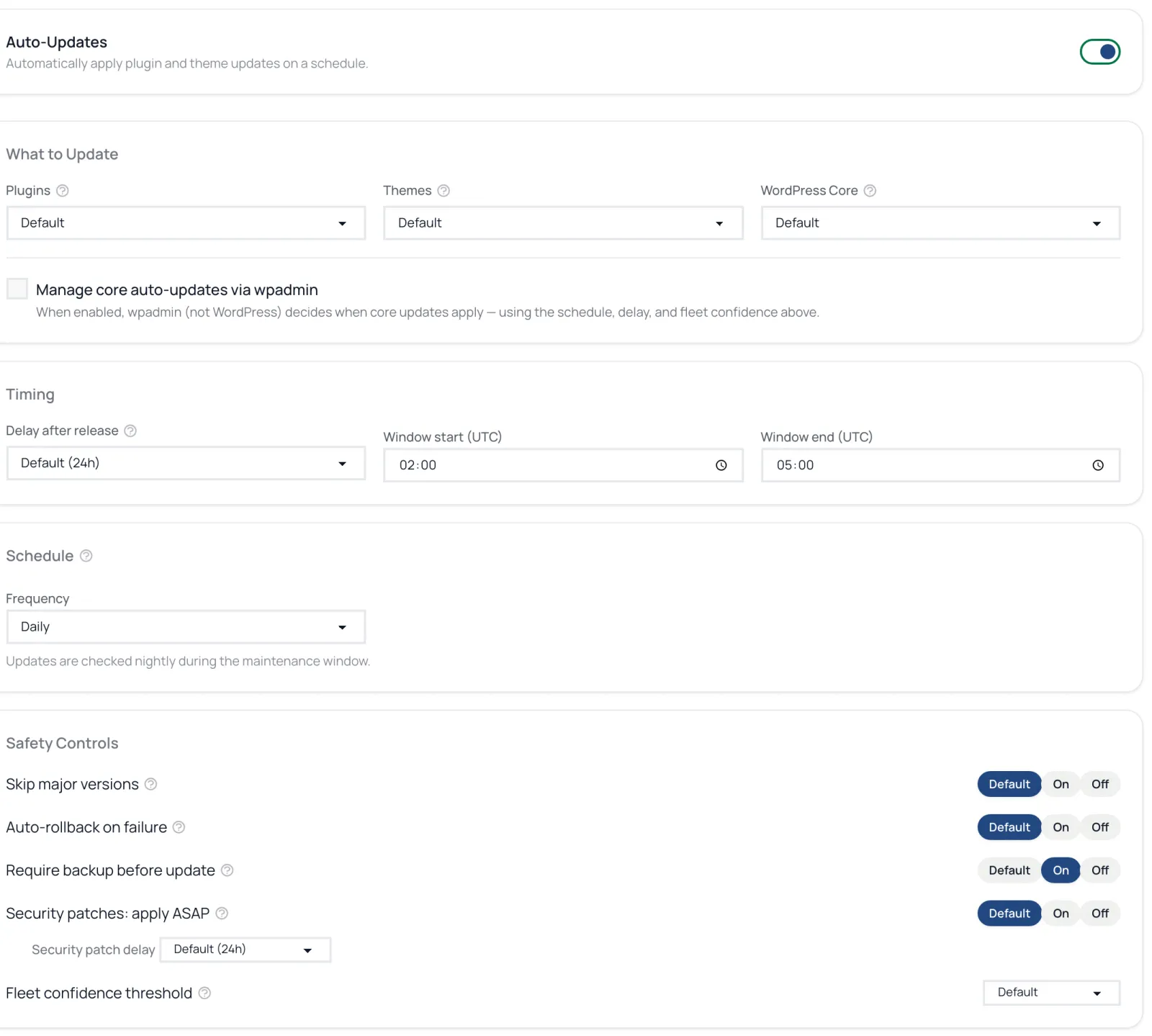
Turn them on
- Open the site and go to Settings.
- In Auto-Update Settings, switch on Auto-Updates.
- The first time, sensible defaults are applied: shops running WooCommerce or Easy Digital Downloads wait 48 hours after a release and need 99% fleet confidence; other sites wait 24 hours and need 95%.
- Click Save Settings.
Choose what updates
Under What to Update, set Plugins, Themes and WordPress Core to Off, Security only or All (core also offers Patch only and Minor). Per-plugin and per-theme overrides let you Ignore one, or always update it.
Choose when
- Delay after release: wait before applying a new version, so problems surface on other sites first.
- Window start (UTC) and Window end (UTC): updates run only inside this window. A window can cross midnight, such as 23:00 to 03:00.
- Schedule: Daily, Weekly on a day of the week, or Monthly on a day of the month or the last day.
Security patches don't wait for a weekly or monthly schedule: with Security patches: apply ASAP on, they go out at the next window, after their own shorter delay.
Safety controls
- Skip major versions: leave a jump such as 5.x to 6.0 for you.
- Auto-rollback on failure and Require backup before update.
- Fleet confidence threshold: wait until 95% or 99% of other sites managed with WP Admin Online have applied the update successfully.
Copy the rules to other sites
Copy to sites... applies this site's rules to the sites you pick.
Product overview: Safe bulk updates