

Everyday work
Safe updates and rollback
How safe updates snapshot your site, compare screenshots before and after, and roll back on their own, and how to choose which pages are checked.
Applies to: Paid plans
A safe update is an update with a way back. Safe updates come with the paid plans. Before anything changes, the dashboard records what your pages look like and takes a snapshot of the site. After the update, it checks the site and compares the pages again. If something broke, it puts the previous version back.
The six steps
Every safe update runs these steps. You can follow them on the update's page under Activity.
- Screenshots before. The pages you chose are captured. By default that's the homepage.
- Snapshot. One database snapshot is taken for the whole batch, and each plugin or theme is copied before it changes.
- Update. The plugin runs the update through WordPress's own updater, the same code wp-admin uses.
- Check. The dashboard loads the site. The update fails if the site returns a server error (HTTP 500 or above), if PHP errors spike (more than double, and more than five), or if the new version didn't actually install. A failed check is rolled back straight away.
- Screenshots after. The same pages are captured and compared pixel by pixel. More than 5% of a page's pixels changing counts as a visual regression.
- Decision. If the comparison found a regression, the update is rolled back or waits for you, as described below.
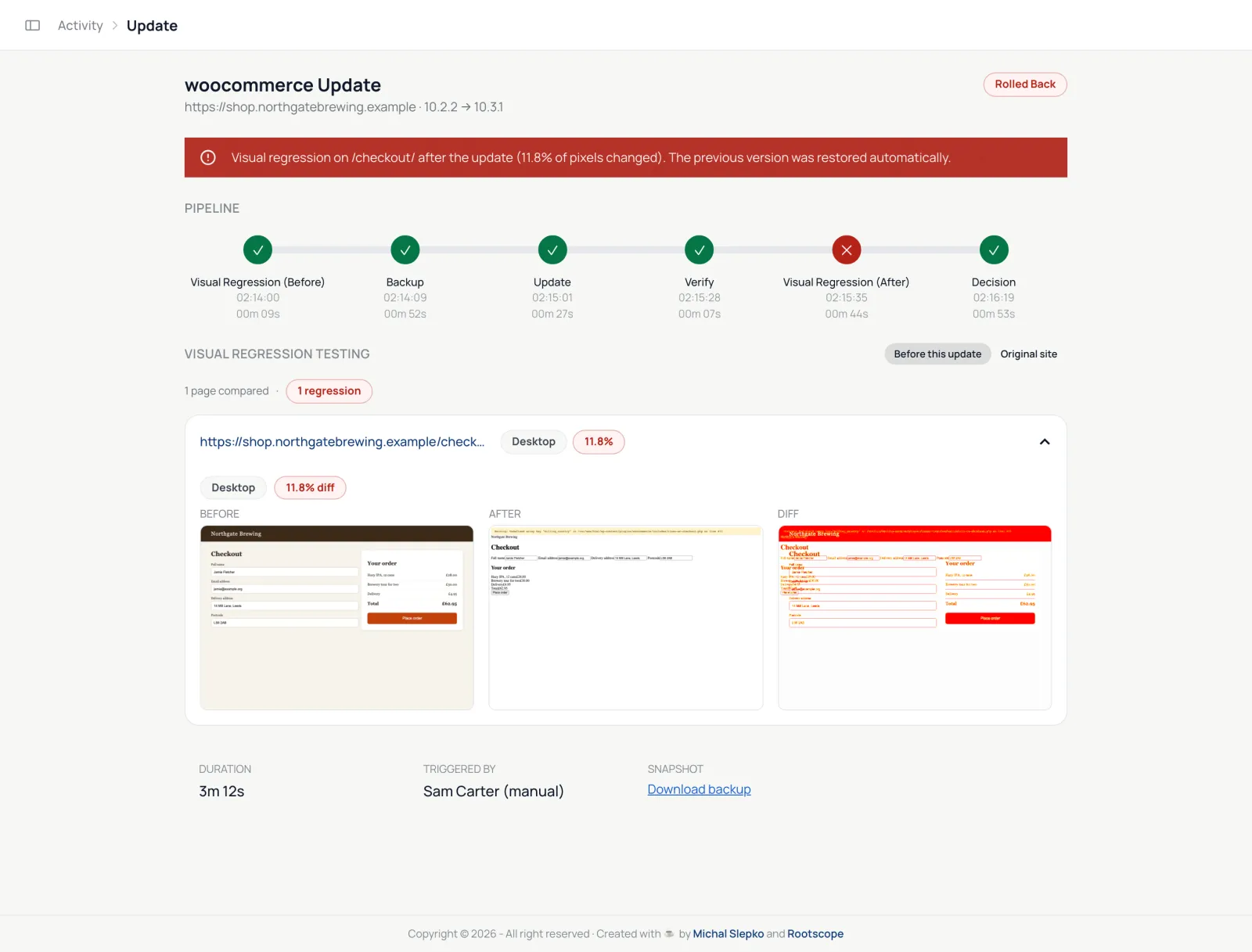
When a page changes
- If you ticked Auto-rollback if visual regression test fails, the previous version is restored straight away.
- If you didn't, the update waits for you. Open it from Activity, compare the before, after and difference images, then keep it or roll it back. You have 60 minutes. After that, it's rolled back automatically.
- If the check in step 4 failed, the update was already rolled back, whatever you chose.
- With Auto-rollback ticked, an update to a new major WordPress version, such as 6.9 to 7.0, is never rolled back on its own. Restoring WordPress across a major version is too risky to do unattended, so it waits for you, with no deadline.
A rollback undoes every update already applied to that site in the batch, and the database snapshot is restored. Anything written to the database since the snapshot, such as a new order or form entry, is undone too. On a busy shop, run safe updates at a quiet time.
Choose which pages are checked
Only the homepage is compared unless you list more pages.
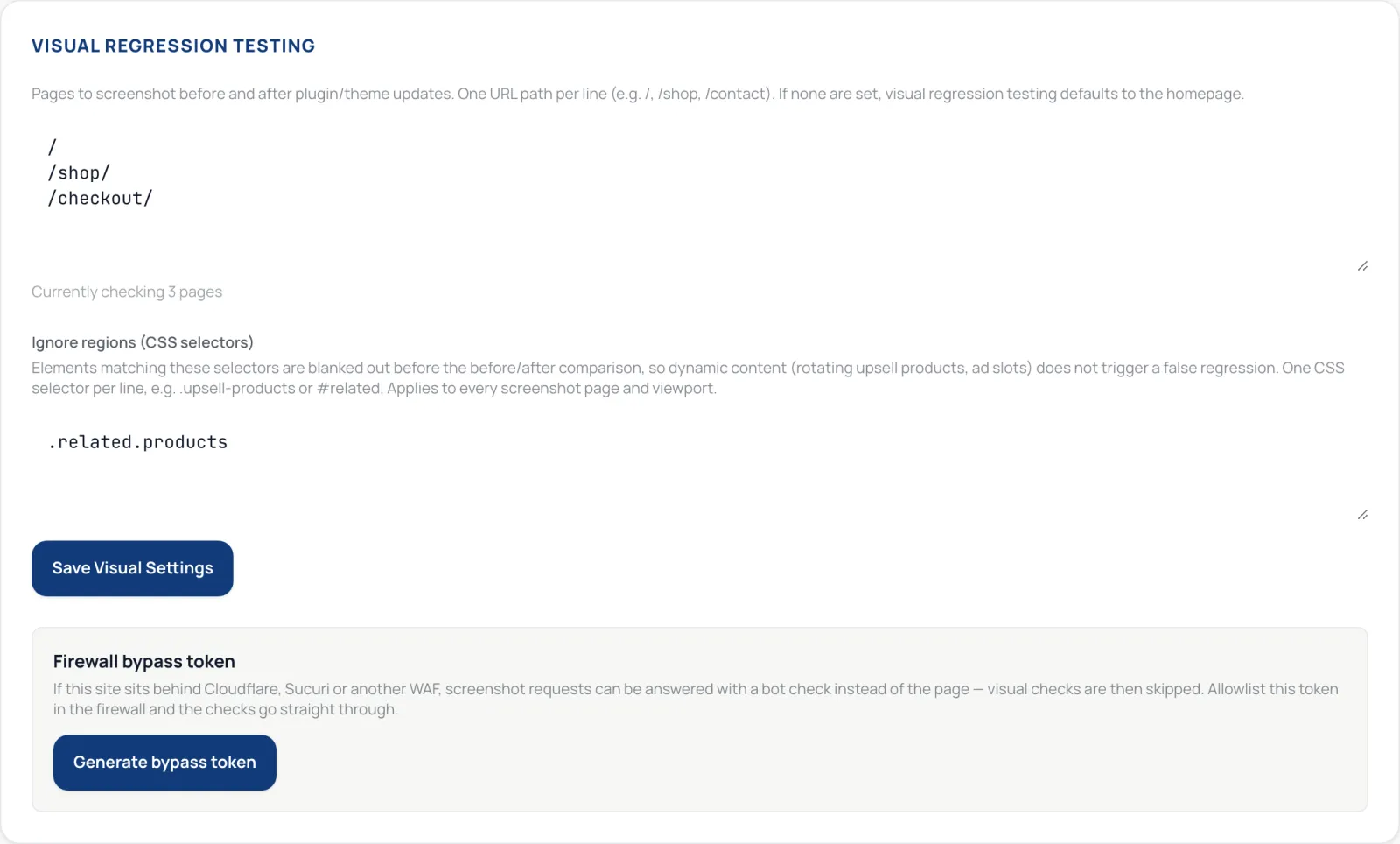
- Open the site and go to Settings.
- In Visual Regression Testing, list one path per line, for example
/shopor/checkout. A full URL works too, as long as it's on the same site. - Under Ignore regions (CSS selectors), list the parts of the page that change on every visit, such as a slider or a cookie banner, one selector per line. For example:
.hero-slider. - Click Save Visual Settings.
Which plans include safe updates
Safe updates and their pre-update snapshots come with the paid plans, and so do WordPress core updates from the dashboard, because those always run as safe updates. On the free plan you can still run Quick Update and Quick + VRT, which take no snapshot and can't roll back. Scheduled backups are a separate feature of the paid plans.
Automatic updates
On paid plans, each site can run low-risk updates on its own under Settings → Auto-Updates. The rules can wait a set time after a release, hold an update until 95% or 99% of other sites managed with WP Admin Online have applied it successfully, stay inside your maintenance window, take a database backup before each update and roll back on failure.
Product overview: Safe bulk updates